Friday, June 21, 2019

Sport Manager Update - 21st June

Below are details of the latest updates to Sport Manager.

Club Details


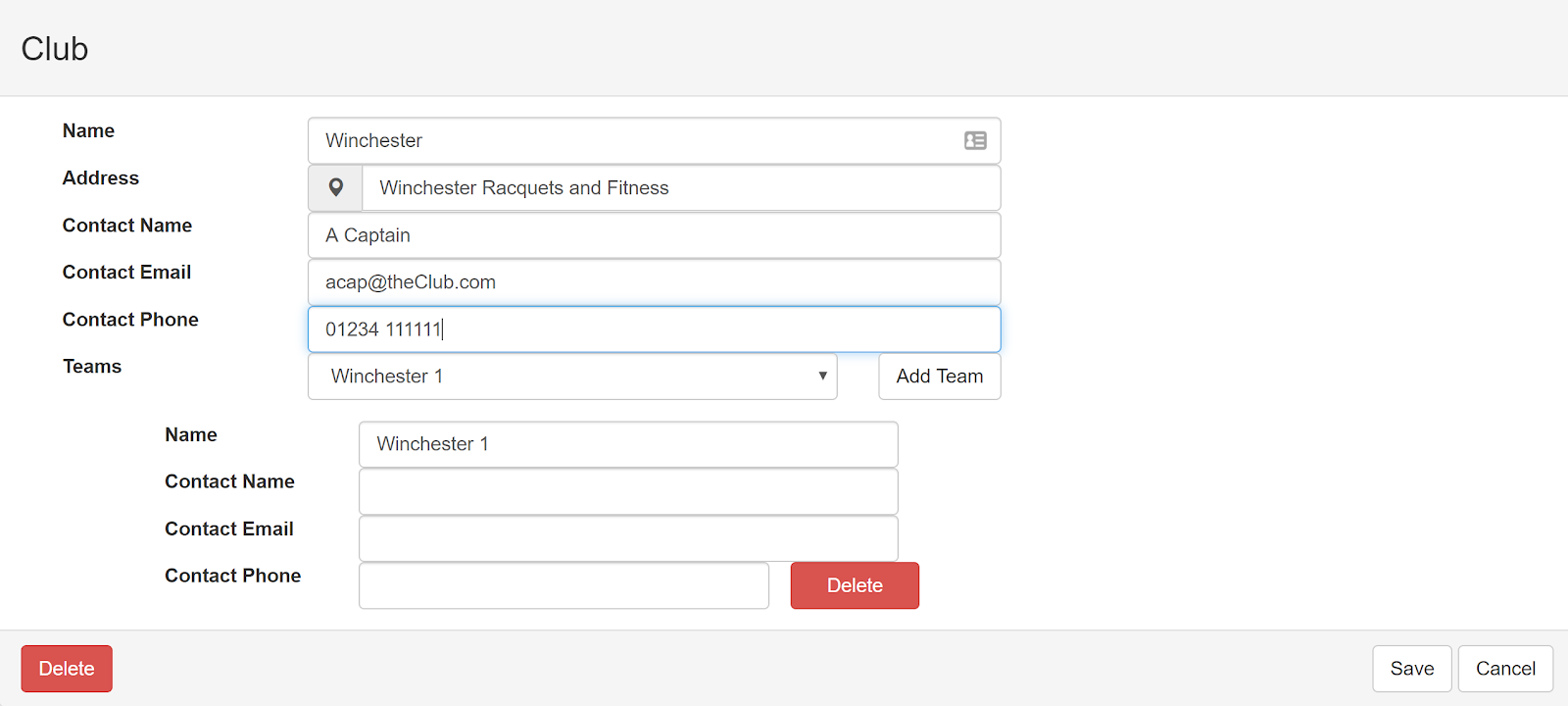
Club details has had a make over. You can now add name, address and phone number contact details for the club and also for each individual team for the club. The address feature has been made a lot smarter (replaces the previous "Map Location" value) using search functionality to find the club in a map using partial address information. For example, setting the address as "Winchester Racquets and Fitness" will be enough to locate the actual location of the club in Bereweeke Road, Winchester. You can test the address using the pin icon button.


League Divisions


Divisions within a league can now have their relative orders adjusted. In the league summary screen you can now move a division up or down with the league:


Bug Fix


A bug has been fixed when displaying results for a Monrad tournament when one of the matches includes a bye.

Wednesday, April 24, 2019

Sport Manager Update - 24th April

Below are details of the latest updates to Sport Manager.

Club Player Contact Details


Club players can now update their contact details.
Select the Settings option from the menu when you click your username in the top right corner.
You can update your contact telephone number and your email address.
If you change your email address you will be logged out and will need to verify your email address using the link that will be sent to the new address. Until you verify the new email address you will not be able to log back in.

League Changes


  • A reported issue with automatic league promotions has now been resolved
  • Changes can now be made to a league even if the league has started

Tennis!


In addition to the original Squash support, it is now possible to change your view to support Tennis. The sport view is set by changing your Selected Sport option in account settings.
As part of this additional sport support, it is necessary to set the number of players in a team when creating a team Fixture.

Tuesday, March 26, 2019

Sport Manager Update - 26th March

This latest update brings a few changes worth mentioning (in addition to various minor updates):

Flexible Match Format

The variable match formats have been replaced with a more flexible match format.
Now instead of choosing from a list of predefined match formats, you can define your match format including any combination of "Best Of", "First To" and "Sudden Death" settings. This flexible match format is now available for fixture, tournament and league matches.

League Bonus

It is now possible to configure bonus points for league players who play all of their matches in a league. This option is available if you edit the League details.

Player Data

Player records now include a contact phone number and a junior flag.

League Club Player

When a club player logins in to see the league, the grid now includes player telephone and email contact details.

Wednesday, March 6, 2019

Club Registered Players

In the latest Sport Manager update one of the main new features is the option for league players to register as account associated players. Once a player is registered with the account registration code, they will be able to login to using their Sport Manager account and be able to enter match results for their (and only their) league matches.

You can view your account registration code by viewing your account settings page - the code is a unique 8 character alphanumeric value.

To register as a club player, go to "Register" and select the Club Player option (https://www.sportmgr.co.uk/Account/RegisterPlayer).

Having created the account the player will be sent an email to confirm their email address. They will not be able login until they have confirmed their email.

Once the player logs in they will be routed directly to the active league that they are a part of. They will be able to see the full league, but will only be able to enter results for their matches.

When entering match results they will need to select the date of the match and enter the full match results.

Registration Invitation

There are 3 ways to get players to register. The first is to let players know your registration code and ask them to create an account.
The second, if you edit a player record, you can click the "Send Registration Code" button. This will send an email to the player asking them to register.
The third, having created a league, the league summary page will confirm the number of players, and of those how many have yet to register. There is also a button "Send Invites" which will send an email invitation to all division players that have not registered (and have not already had an email invitation sent). Note that you will need to invite players for each division as required.
Whenever a new user registers using your account registration code, you will be notified by email. The registration process will have created a player record, however you will need to complete missing information. You will be able to use Squash Levels look up data to speed up this process and ensure that the player is associated with their Squash Levels record.
Saturday, February 9, 2019

League Points


Players get 1 point for each game they win. In addition the winner gets 3 extra points whilst the loser only gets 1 extra point (therefore there is an incentive to play every match as you always get 1 point just for turning up). However, for each game the eventual winner loses, they lose 1 point. For example:

David vs Jack – 3-11, 5-11, 11-9, 0-11

David – 2 points (1 game plus 1 played bonus)
Jack – 5 points (3 games minus 1 game, plus 3 winner bonus)

The possible results look like:

Result Points A Points B
3 - 0
6 1
3 - 1
5 2
3 - 2
4 3
2 - 3
3 4
1 - 3
2 5
0 - 3
1 6

Getting Started - Creating a Tournament

In this next article in the getting started series, we will walk through the process of creating a simple tournament.

Before a tournament can be created, there must be a Club record for the club that will be hosting the tournament. This can be simply created by navigating to the Clubs screen, clicking "Add New Club", entering the club name and clicking "Save". The other details on the club screen we'll leave for now as not required for a simple tournament.


Now to create the tournament.
Navigate to the Tournaments screen and click "New Tournament" and then enter each of the fields and click Save:
The Tournaments screen will now include your tournament in the grid - click on the tournament name link and the tournament summary will be displayed.

The next step is to "Add New Grade", filling in all of the required details and clicking Save:

Next we need to add players to the tournament - click on the Players tab and click "Add Player". Select each player (from the presented full player list) to add to the tournament. The players will now be in the "[Ungraded]" section:
Now we need to add the players to the grade by click on the arrow button and selecting the grade that you want to add the player to.

In the next article we will run the draw, schedule the matches and enter the results.

Friday, February 8, 2019

Getting Started - Creating a League

In the next of the getting started series, we will walk through the process of creating a league.

First you need to add a league by clicking the "New League" button.


The "number promoted" determines how many top players will be promoted and demoted at the end of each league.

Now navigate to the league and "Add New Division".
If there is a format you want to use that is not list, then please contact us via support
Having created the division, you now need to add players.
Add each player to the league, then drag each player to the correct division. Alternatively, you can move people between divisions using the drop down button to the right of the player name.

Once you have created the league, the divisions and added players to each one and ready, navigate to the league summary and click on "Start League".

Starting the league will send an email to all players in each division. It will confirm the date by which the matches should be played and will include a link to the public web page that they can view the current league positions.

The email will look something like: